1Overview
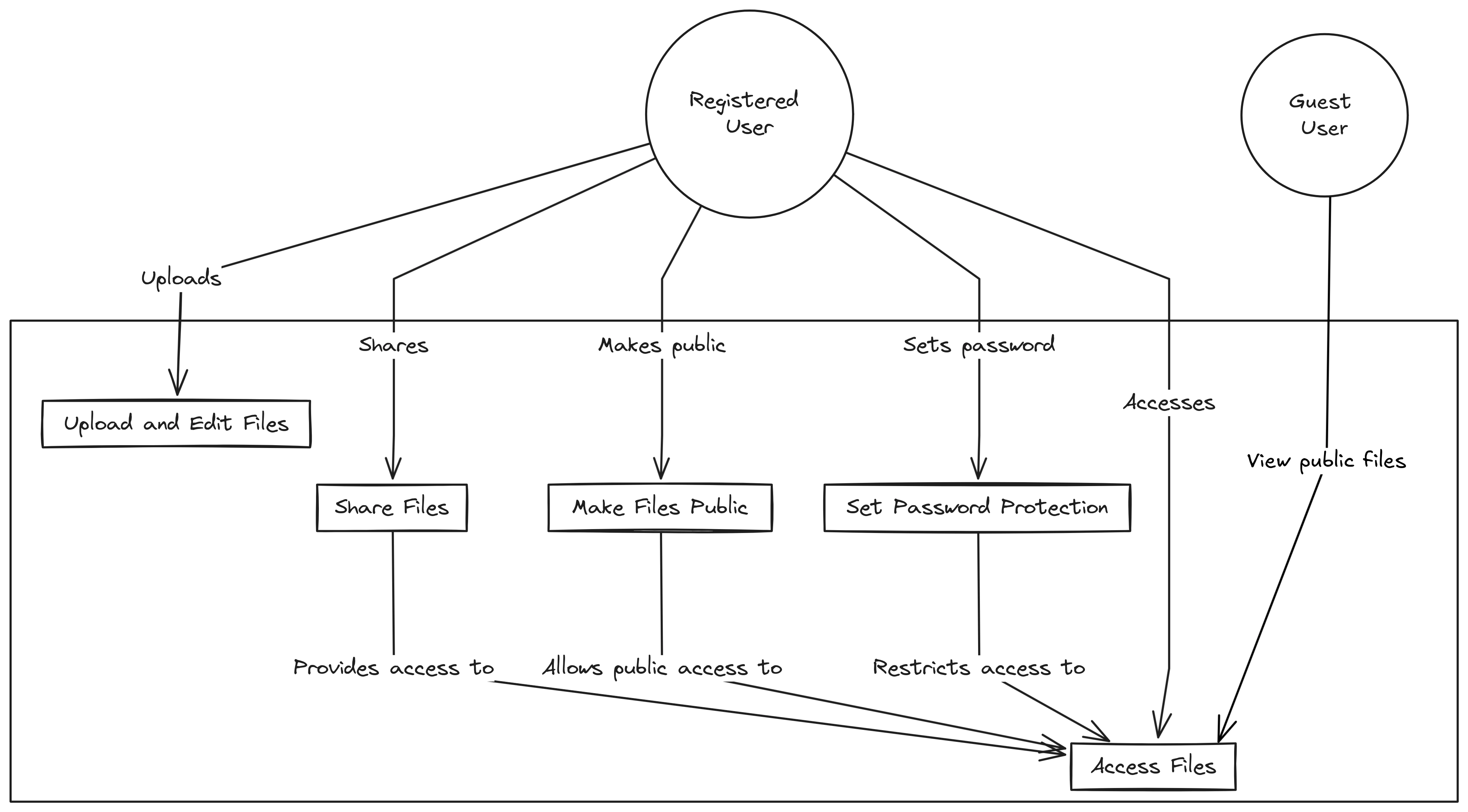
This file storage and sharing system enables users to:
- Upload and edit files: Users can upload various types of files to their personal storage space on the website and edit them.
- Share files: Users can share files with specific individuals or groups(all workspace members), providing controlled access to their content.
- Public file access: Users can make certain files public, allowing guest users to view these files without requiring a login.
- Password protection: For added security, users can set passwords on files to restrict access and ensure that only authorized users can view the content.
This system is designed to be user-friendly and secure, ensuring that users can manage their files with ease while maintaining control over who can access their content.
2Data model
2.1Workspace
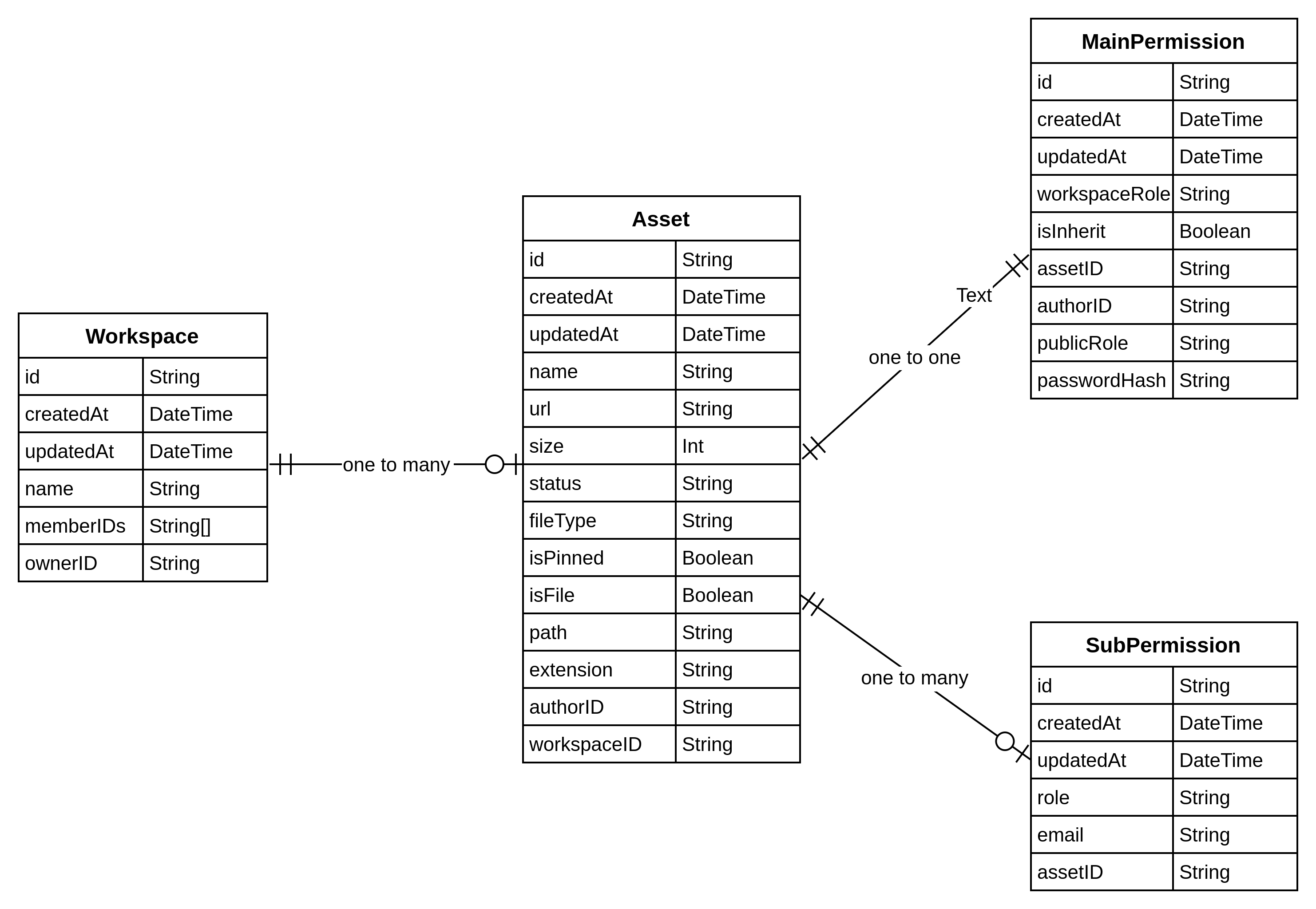
The workspace table contains basic information that is essential for understanding the context. It's important to know that a workspace is essentially a group of people working together towards common goals. These individuals may collaborate on various sharing resources.
2.2Asset
The Asset table is the primary storage for information about digital assets within the system. These assets could include various types of files, documents, or other digital content. This table stores essential metadata about each asset, including identifiers, timestamps, file details, ownership information, and organizational categorization (such as project and workspace associations).
2.3Main permission & sub permission
The Permissions table manages access control and authorization for various resources within the system, defining who has what level of access to different assets. This table stores comprehensive permission data, including roles, access levels, and the scope of permissions.
This data model ensures a flexible and comprehensive system for managing files and their public accessibility, providing the foundation for a robust file storage and sharing system.
3Handle file structure
3.1Problem
Hierarchical File Listing
- The challenge in representing and maintaining a folder-like structure for file organization
- Efficient methods for retrieving files at specific levels of the hierarchy
File Operations Across Hierarchy
- Complexity in moving files between different levels of the hierarchy
- Ensuring data integrity when relocating files with child elements
- Updating all relevant references and permissions when files are moved
3.2Solution
Path Field in Asset Model
The path field in the Asset model represents the hierarchical location of an asset within the storage system. It is formatted as a string of concatenated IDs separated by slashes, such as "/6667c29bb49c9ccb61d4aefe/6667c324b49c9ccb61d4af04/6667d6e8b49c9ccb61d4af2d". The structure of this path is as follows:
- The first ID (6667c29bb49c9ccb61d4aefe) represents the workspaceID.
- The subsequent IDs represent the hierarchical directory structure leading to the current asset, with each ID corresponding to a parent directory (e.g., assetID level 1, assetID level 2).
Performance Improvement
Using the path field in this format allows for efficient retrieval and updates of asset locations. Since the entire hierarchy is encapsulated in a single string, operations like moving an asset to a different directory or renaming a directory can be performed with constant time complexity, O(1). This efficiency is achieved because:
- Direct access: The path provides a direct reference to the asset's location, eliminating the need for recursive directory traversal.
- Simplified updates: Updating the path of an asset or its parent directories only requires modifying the string, avoiding complex tree structure updates.
This approach significantly reduces the computational overhead and complexity associated with managing hierarchical file structures, ensuring swift and efficient operations.
4Permissions

In this section, I will discuss how I handle the logic and design the data model for the following features: setting permissions, sharing files for public access, and setting a password for a file. Refer to the diagram below to understand how permissions work in this system.
4.1Functional requirements
- Each file will be set permission, and when users interact with it, they must satisfy it.
- Files will inherit permission from the parent by default.
- There are 2 scopes, allow permission for all members in workspace or invite only.
4.2Permission data model
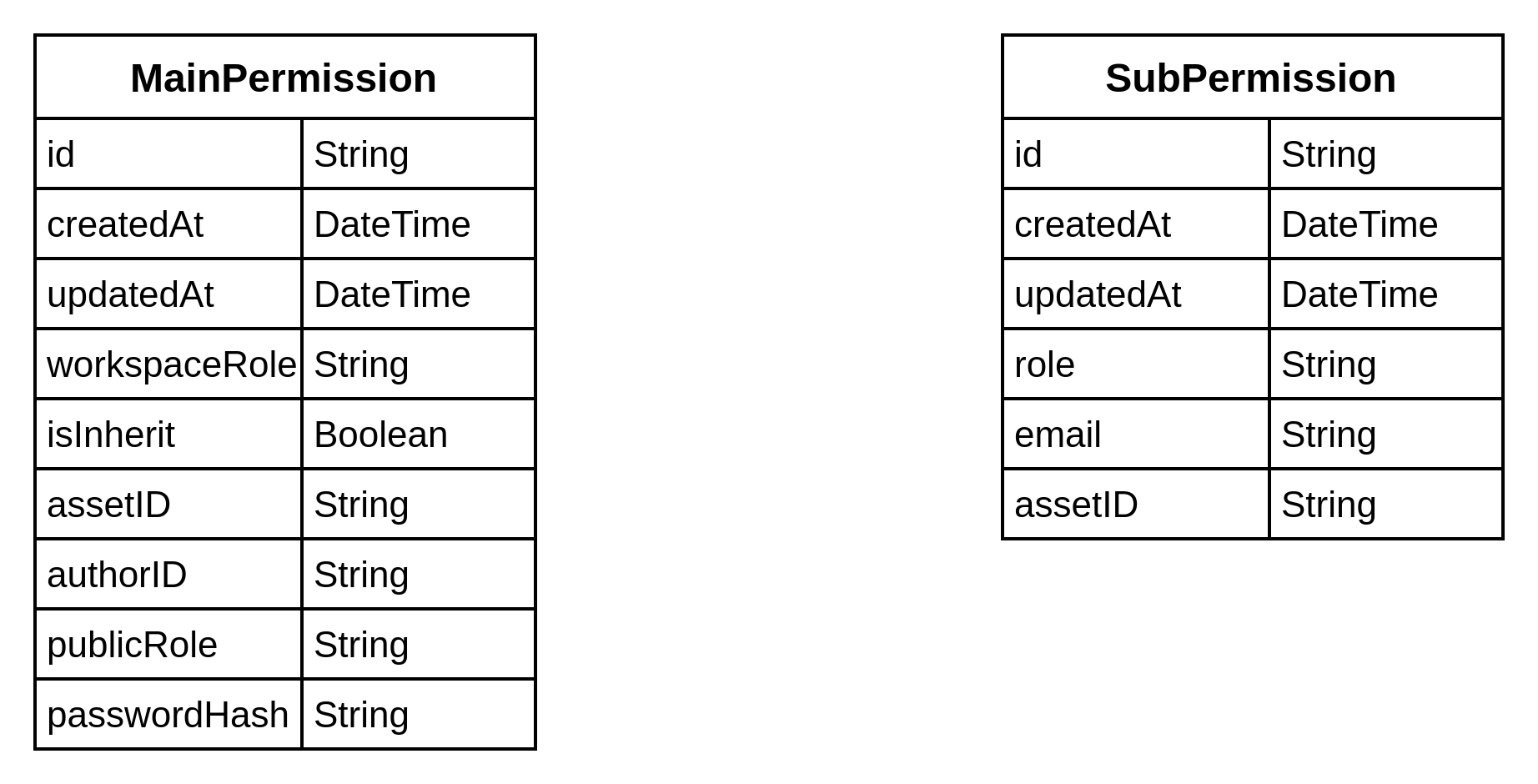
MainPermission Table Each asset has one and only one record in this table, it contains general permission details for the asset. Public Role field: Showing the role of guest user when accessing the file
- EDITOR: Can view and edit
- VIEWER: Can only view
- NO_ACCESS: Cannot access the asset
Child Role field: Show the permission workspace members and only have value
- FULL_ACCESS: Can perform all operations
- EDITOR: Can view and edit
- VIEWER: Can only view
- NO_ACCESS: Cannot access the asset
- INHERIT: Inherit from parent folder
Is Inherit field: true if the permission for this asset is inherit from the parent
SubPermission An asset can have many records in this table, showing role for a specific email Role field: Show the permission for an invitee or project members in this record
- FULL_ACCESS: Can perform all operations
- EDITOR: Can view and edit
- VIEWER: Can only view
- NO_ACCESS: Cannot access the asset
- INHERIT: Inherit from parent folder
4.3Logic
Permission Hierarchy
Permissions are checked in this order:
- Direct user permission on the asset in SubPermission table
- Main permission's childRole (default for workspace members)
- Inherited permission from parent directories
Permission record rules:
- When init an asset, we will create a record in MainPermission, with isInherit = true and childRole = 'INHERIT', this means the asset inherit permission from parent directories.
- If there is any update in the permission, the isInherit = false and chilRole value will be set as specific permission but not INHERIT.
5Sharing file
5.1Functional requirement:
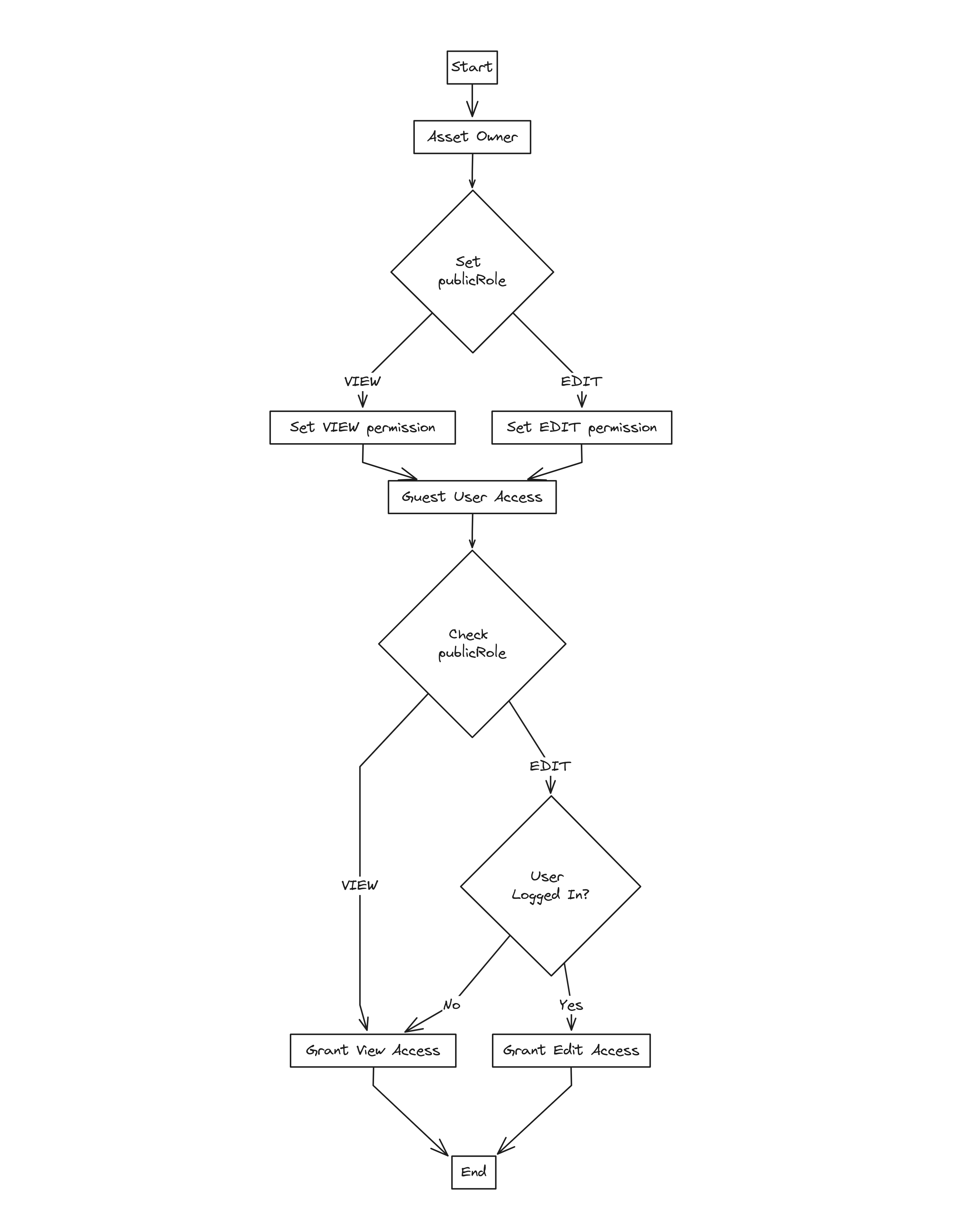
- Setting public access
- Asset owners can set the publicRole in the permission table.
- The role can be either VIEWER, EDITOR or NO_ASSET.
- Accessing public assets
- When a guest user attempts to access a public asset, the system checks the publicRole.
- Based on the publicRole, the user is granted view or edit permissions.
- If the user is not logged in, they are restricted to view-only access.
5.2Key components
publicRole in Permission Table
- publicRole: Defines the level of access for public users.
- VIEWER: Allows public users to view the asset.
- EDITOR: Allows public users to edit the asset.
- NO_ASSET: value means the files is not allow public asset
6Password protection feature
6.1Functional requirement
The password protection feature allows users to set a password on their assets to restrict access. If an asset has a password, any user attempting to access the file must provide the correct password.
6.2Key components
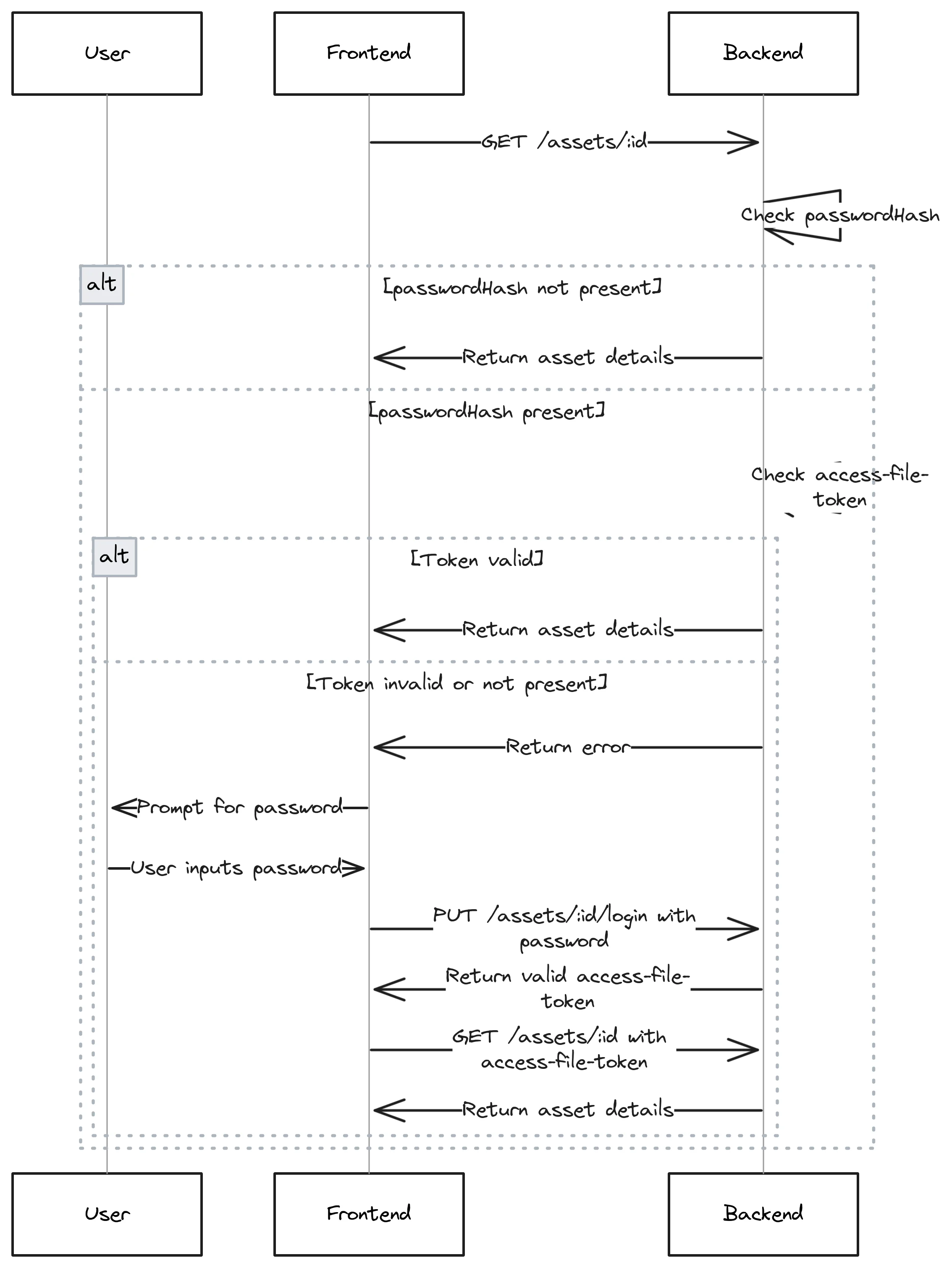
passwordHash in Permission Table
- passwordHash: Stores the hashed password for the asset.
- When this field has a value, password protection is enabled for the asset.
- The password is securely hashed before being stored to ensure security.
6.3Workflow
To make it easy to understand, I will show the workflow for getting file details. This process also applies to other features like updating and setting permissions.
The idea is that the user will get an asset-file-token by using GET /assets/:id/login. Then, add it to the header for authorization when calling GET /assets/:id to get detailed info.
7Conclusion
In conclusion, this system implements a robust and flexible permissions model for file management. It covers essential features such as upload, manage, setting permissions, public file sharing, and password protection. The design allows for granular control over access levels, inheritance of permissions, and secure sharing options. This comprehensive approach ensures that users can effectively manage their files while maintaining appropriate levels of security and collaboration within the workspace.